


🔄 Last Updated: September 3, 2026
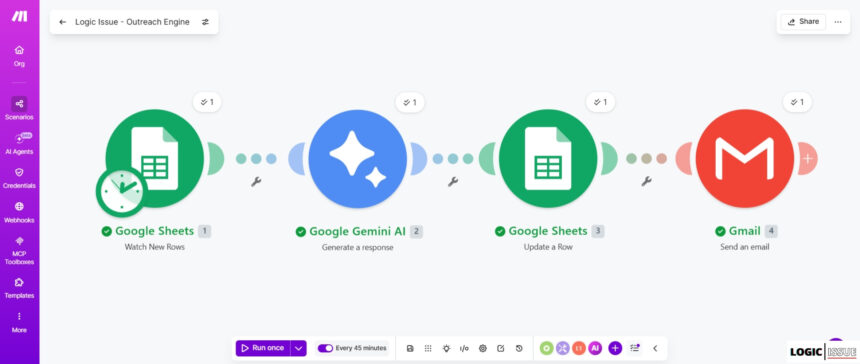
In 2026, the autonomous AI outreach engine is the most powerful tool a B2B agency can build. Businesses are no longer hiring for design or development first — they are hiring for the systems that make everything else run faster. We are living in the era of Agentic AI Workflows, where AI does not just respond to questions. It plans, decides, and executes entire workflows autonomously.
Yet, most B2B agencies still do cold outreach like it is 2022. They are either manually scraping websites for hours to write one personalized email, or blasting 10,000 generic templates and burning their domain reputation. Both approaches cost time, money, and credibility. Furthermore, neither approach scales.
What if you could build an autonomous AI outreach system that researches a prospect’s website, writes a hyper-personalized icebreaker, and sends a beautifully formatted HTML email — all while you sleep? I built exactly this at my own agency, and after running it live for several weeks, the reply rate climbed significantly above the industry average. This guide is the complete, step-by-step breakdown.
In this guide, you will build a complete, zero-touch outbound AI architecture using Make.com, Google Gemini, Google Sheets, and Apollo.io. The best part? This entire system operates on a $0 budget.
The Complete Tool Stack at a Glance
Before building, understand the assembly line. The system uses five free tools working in sequence.
| Tool | Role | Cost |
|---|---|---|
| Apollo.io (Free Tier) | Lead store — exports verified prospect data | $0 |
| Google Sheets | Trigger database that wakes the automation | $0 |
| Make.com (Free Tier) | Orchestration engine tying everything together | $0 |
| Google Gemini AI | The “brain” that reads websites and writes copy | $0 |
| Gmail | Delivery mechanism for personalized HTML emails | $0 |
This architecture is what separates modern AI workflow automation from basic Zapier-style triggers. Each module passes context forward to the next, creating a living, thinking pipeline.
Step 1 — The $0 Lead Sourcing Strategy (Apollo.io)
Tools offering 100% automated lead scraping via APIs require expensive monthly subscriptions. Because we operate on a strict zero budget, we use a highly efficient Semi-Automated Batch System. You act as curator for 15 minutes per week, and the system does the rest.
Note: If you have budget and want 100% automation, you can connect the Apollo API directly to Make.com later. For now, we bootstrap.
Log into your free Apollo.io account. Navigate to the Search > People tab — not “Companies.” You need to email humans, not org charts. Apply the following “Cheat Code” filters for precision targeting:
- Job Titles: Founder, CEO, Owner
- Location: United States (or your target market)
- Industry: Marketing & Advertising (or your specific niche)
- Email Status: Verified — do not skip this. Unverified emails bounce, and Google will flag your account as spam.
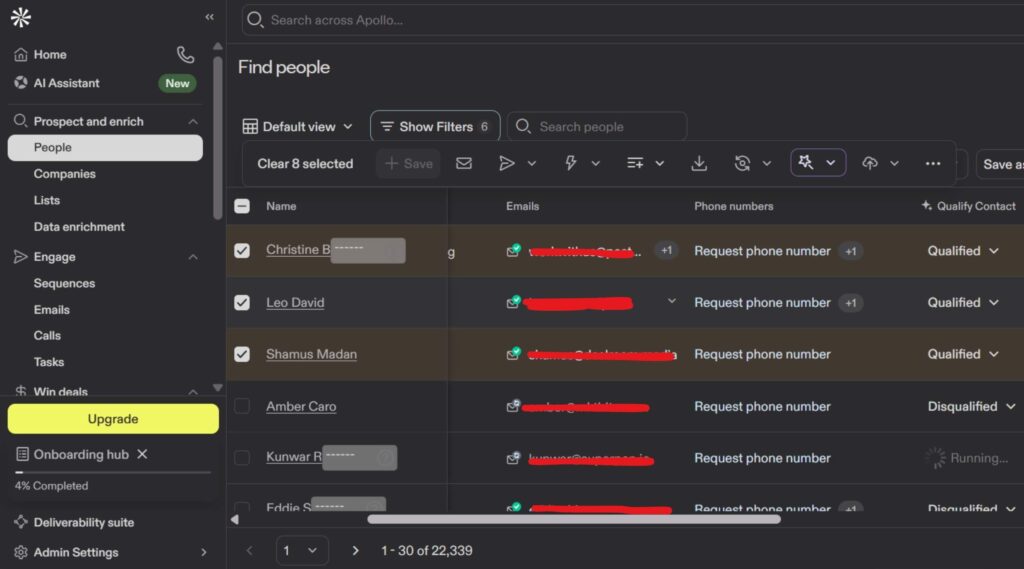
Select 25–50 leads and click Access Email to unlock their data. Click Export to CSV. When you open that Apollo CSV, you will see 50+ columns of data. Ignore almost all of it. Copy only First Name, Company Name, Website URL, and Email Address before moving to Step 2.
Step 2 — Setting Up the Trigger Database (Google Sheets)
Your Google Sheet is the switch that wakes up your AI engine. Consequently, keeping it clean and structured is critical for the automation to fire reliably.
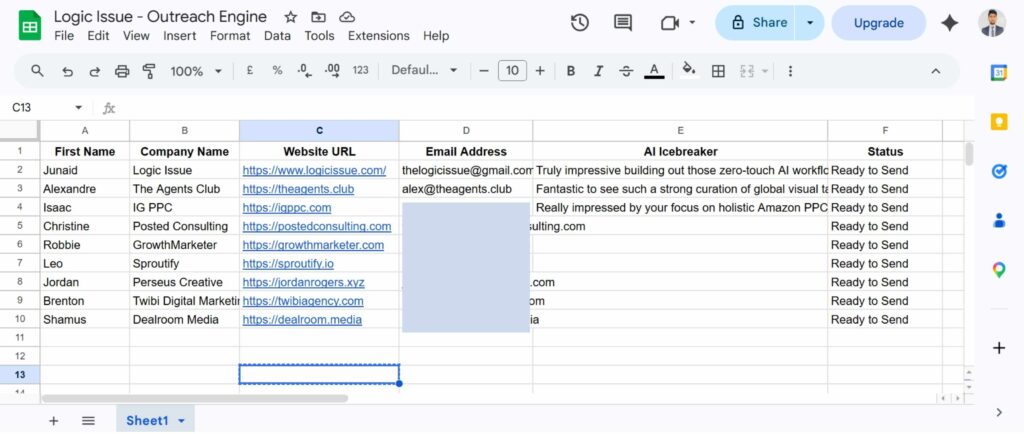
Create a new Google Sheet and name it something like Outreach Engine. Create exactly six columns:
- Column A: First Name
- Column B: Company Name
- Column C: Website URL
- Column D: Email Address
- Column E: AI Icebreaker
- Column F: Status
Paste your Apollo data into columns A through D. In the Status column, type New for every lead you just pasted. This single word is the trigger that tells Make.com which rows to process.
Step 3 — Building the Automation Engine in Make.com
Now we orchestrate the automation. Log into Make.com and create a new scenario. The engine has four modules, and each one is critical.
Module 1: Google Sheets — Watch Rows
This module watches your sheet for any row where Status equals “New.”
Add the Google Sheets > Watch Rows module. Connect your Google account and select your Outreach spreadsheet. The crucial step here is finding the Limit box inside the module settings. Set this to 1. We only want Make.com to process one lead at a time. This mimics human behavior and protects your sending reputation.
Module 2: Google Gemini AI — The Brain
This is where the magic happens. The AI visits the prospect’s URL and writes a custom opening line. However, Large Language Models have a problem called a “Chain of Thought Leak” — they accidentally output their reasoning process (“I see this company does SEO, so I will write…”) directly into your live email.
To prevent this, you must use a Bulletproof System Prompt. This is the single most important technical detail in this entire guide.
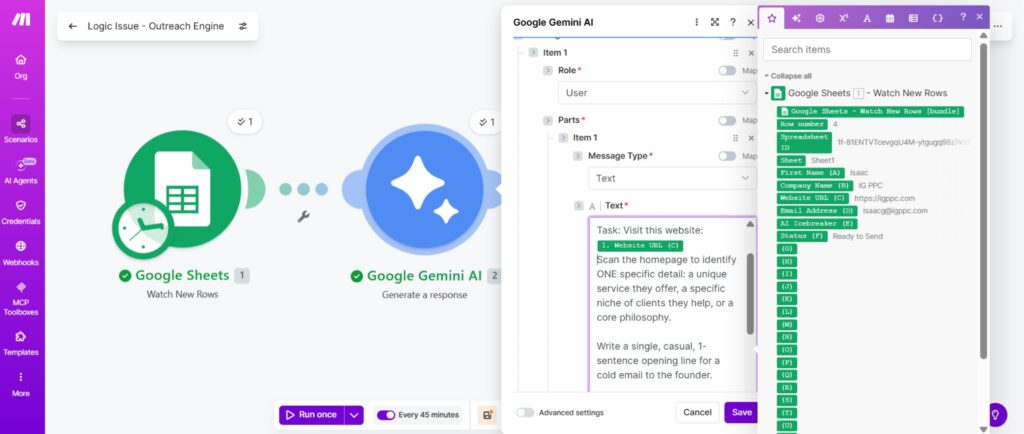
Add the Google Gemini (Generate Text) module. In the text prompt, map the Website URL green bubble from Module 1, then paste this exact prompt framework:
Role: You are an elite B2B sales copywriter specializing in hyper-personalized cold email icebreakers.

Task: Visit this website: [MAP WEBSITE URL BUBBLE HERE] Scan the homepage to identify ONE specific detail: a unique service they offer, a specific niche of clients they help, or a core philosophy. Write a single, casual, 1-sentence opening line for a cold email to the founder.

STRICT OUTPUT RULES (CRITICAL — SYSTEM WILL FAIL IF BROKEN):

ZERO THOUGHT PROCESS: Do not analyze, explain, or draft. Do not write "The website says..."

ZERO PREAMBLE: Do not write "Here is the icebreaker:"

NO DICTIONARY TONE: Do not tell the founder what their own company does.

TONE: Casual, peer-to-peer, and human.

LENGTH: Absolute maximum of 15 words.

OUTPUT FORMAT: Output ONLY the final spoken sentence. Absolutely no other text.

EXAMPLES OF PERFECT OUTPUTS: "Really impressed by your hands-on approach to scaling 8-figure Amazon brands." "Love how you guys are structuring those local SEO campaigns for dental clinics."

YOUR OUTPUT:
YOUR OUTPUT:
Module 3: Google Sheets — Update a Row
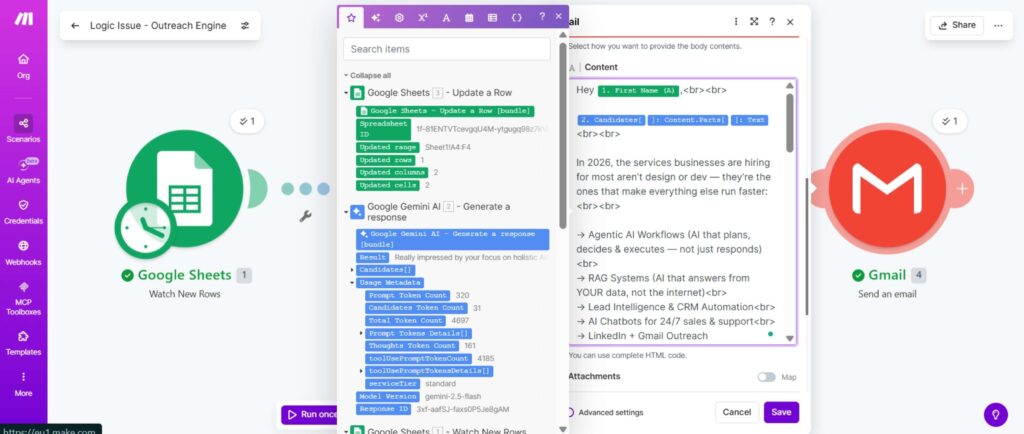
Add the Google Sheets > Update a Row module. Map the Row ID from Module 1. In the AI Icebreaker column, map the Text output (the blue bubble) from the Gemini module. Change the Status column value to Ready to Send. This prevents the system from re-processing the same lead in future runs.
Module 4: Gmail — Send an HTML Email
This is where most people fail. They use standard text formatting, and their emails arrive as giant blocks of unreadable text. Moreover, text-only emails have no visual identity. To make your email look professional and trustworthy, you must use HTML.
Add the Gmail > Send an Email module. Map the To field using the Email Address from Module 1. Set the Body Type to rawHtml.
When using rawHtml, the “Enter” key does nothing. You must use
Here is the optimized HTML email template. Notice how the AI icebreaker is mapped seamlessly into the body copy as a natural opening line:
Hey [Map First Name — Module 1],
[Map Gemini Text Output — Module 2]
In 2026, the services businesses are hiring for most aren't design or dev —
they're the ones that make everything else run faster:
→ Agentic AI Workflows
→ Lead Intelligence & CRM Automation
→ AI Chatbots for 24/7 sales & support
I built all of this at my agency, and I set it up end-to-end for you.
No engineering team needed.
Worth 15 minutes to see what this looks like for [Map Company Name — Module 1]?
Best,
Your Name
Founder & AI Automation Architect

www.yourwebsite.com
Step 4 — The Human Scheduling Strategy
If Make.com blasts 50 emails in exactly 2 seconds, Google’s security algorithms will instantly flag your account as a spam bot. Therefore, you must make the system behave like a human — sending one email, pausing, doing work, then sending the next. Similarly, you must respect the time zones of your targets.
Click the Clock Icon in the bottom left of your Make.com scenario screen. Change the schedule to Regular Intervals. Set the interval to 45 minutes. Check the box for Advanced Scheduling.
US Founders are most active Tuesday through Thursday. Set your active days accordingly. Set the active hours to align with 9:00 AM to 2:00 PM in your target’s time zone. For example, if you are operating from Pakistan (PKT), set the hours from 18:00 to 23:00.
Turn the main scenario switch to ON. Your autonomous AI outreach engine is now live.
This is the same scheduling philosophy used in our AI Lead Intelligence Automation with n8n and GHL case study — pacing prevents spam flags and dramatically improves deliverability.
Phase 2 Upgrades — Scaling the Machine
What you just built is a robust, zero-touch outbound engine that costs nothing to operate. Once it is running successfully and generating revenue, you can upgrade the architecture in two high-impact directions. As a result, the system evolves from semi-automated to fully autonomous.
Upgrade 1: The Fully Automated Apollo API
Instead of manually exporting CSVs once a week, upgrade your Apollo account and integrate their API directly into Make.com. Schedule a webhook to fire every morning, commanding Apollo to find 10 new founders matching your criteria, pull their verified emails, and feed them directly into the Gemini workflow. You completely eliminate the Google Sheet middleman. This pairs naturally with the patterns described in our Autonomous SEO Content Engine using Make.com guide.
Upgrade 2: The Instant Inbound Webhook
Flip the entire system from Outbound to Inbound. By connecting your WordPress contact form to a Make.com Webhook, the moment a prospect submits an inquiry, Make.com grabs their company URL, has Gemini research their specific use case, and sends a hyper-personalized response within 60 seconds of them clicking “Submit.” For a complete walkthrough of webhook architecture, see our guide on How to Use Webhooks in Make.com.
You can also explore our Automate Lead Qualification with AI and Automate Facebook Lead Ads to CRM guides for additional pipeline automation patterns that plug directly into this architecture.
Common Mistakes to Avoid
These are the errors that break most beginners’ first runs. Avoid them from the start.
Pros of this system:
- Costs $0 to build and operate on free tiers
- Scales from 10 to 500+ emails per week without extra cost
- Fully personalized output — no two emails are identical
- Protects domain reputation through human-like sending pace
Cons to be aware of:
- Gemini occasionally hallucinates website details — spot-check the AI Icebreaker column weekly
- Free Make.com tier limits monthly operations — monitor your usage dashboard
- Apollo free tier email unlocks are limited per month — prioritize quality over volume
- rawHtml formatting requires basic HTML knowledge for customization
The Shift to AI Architecture
The agencies that survive 2026 will not be the ones hiring massive teams of entry-level SDRs to copy-paste emails. They will be the ones engineering intelligent systems that handle manual operations autonomously. This is not a theoretical future — it is happening right now, and the tools are free.
By following this guide, you have transitioned from an operator into an AI Automation Architect. For a broader understanding of where this discipline is heading, see our deep-dive into Agentic AI in Zapier and Make.com and our full overview of AI Workflow Automation services.
Feed the machine, monitor the inbox, and focus your human energy strictly on closing the deals the AI brings to your table.
Want us to build this system end-to-end for your agency? Explore our AI Automation Agency services or view our live Workflow Automation Case Studies to see exactly what these systems produce in the real world.
Frequently Asked Questions

Is this autonomous AI outreach engine really free to build?
Yes. The entire system runs on free tiers: Apollo.io free account, Google Sheets (free), Make.com free tier (1,000 operations/month), Google Gemini free API, and Gmail. The only cost is your 15 minutes per week curating the lead list.
How many cold emails can I send per day with this system?
On the 45-minute schedule described in Step 4, the system sends approximately 10–12 emails per business day. This is intentional — it keeps volume within Gmail’s safe sending thresholds and avoids spam flags. You can adjust the interval as your domain warms up.
What happens if Google Gemini writes a bad icebreaker?
The AI Icebreaker lands in Column E of your Google Sheet before the email sends. Review the sheet after each batch. If an icebreaker is off, simply edit it in the cell and re-trigger that row by changing Status back to “New.” The system will reprocess it in the next scheduled run.
Can I use this system for markets outside the United States?
Absolutely. Change the Apollo location filter to your target country and adjust the Make.com scheduling hours to match your target time zone. The core architecture works for any English-language B2B market.
How do I scale this beyond the free tier limits?
Once the system generates revenue, upgrade Make.com to the Core plan ($9/month) for 10,000 operations, and upgrade Apollo to unlock more email credits. Additionally, connect the Apollo API directly (Upgrade 1 above) to eliminate the manual CSV step entirely. See our AI Automation Course for Beginners for a structured path to scaling these workflows.
External Resources:
- Google’s Email Sending Best Practices — official Gmail bulk sending guidelines to protect your domain reputation.
- MDN HTML Element Reference — for customizing the HTML email template in Module 4.